
How to Set a Minimum Threshold for All Products:
1. Go to Settings
Click on your profile icon in the top-right corner of the screen.
Select Settings from the menu.
2. Enable Minimum Thresholds
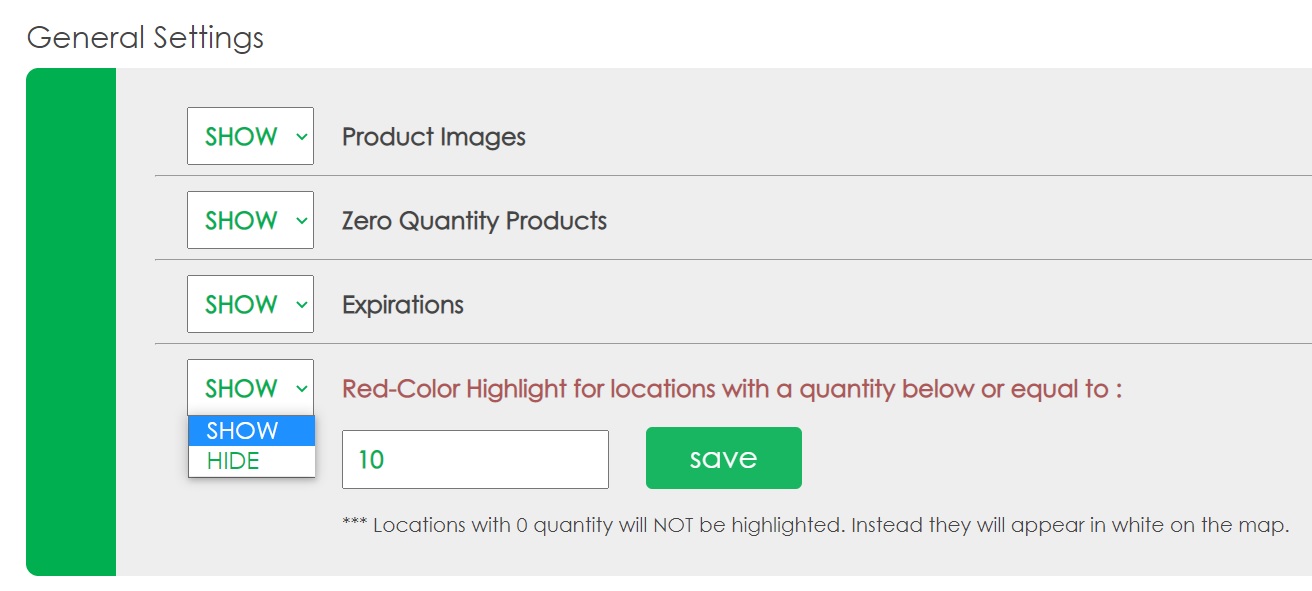
Scroll down to the General Settings section.
Set the 'Red-Color Highlight' to 'SHOW' to enable this feature.
3. Enter a Default Minimum Quantity
In the provided field, enter the default minimum quantity you want to apply to all products and then click 'save'.
Important Notes:
When the total number of products inside any location goes below the threshold, that location will turn red on the map.
If you select a specific product in your inventory, you will see the threshold colors for that product on the map.
There is only one threshold for all of your products.
If a location contains multiple products and one goes below the threshold but the total number does not, that location will not turn red.