

Accessing User Settings
On the Settings page, scroll down to the 'Profile & Team' section.
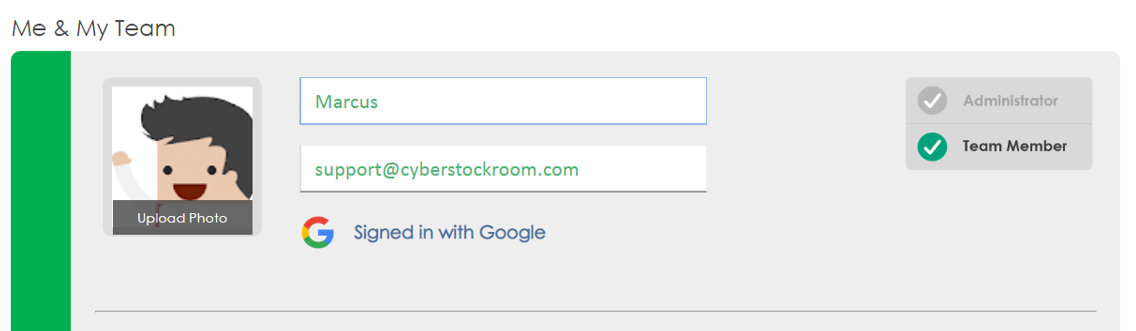
From here, you can manage the following:
1. Upload/change a photo for your profile.
Click the 'Upload Photo' button beside your name and upload an image to your profile.
2. Change your username and/or email.
Click on your username/email and type a new one.
2. Change your password.
Click on 'Change My Password' below your email. You will be asked to enter your old password for verification.
Note: If you have lost or forgotten your password, you can visit the Login page and click 'Forgot Password' under the Login button. You will be asked to enter your email address, and a password recovery link will be emailed to you.
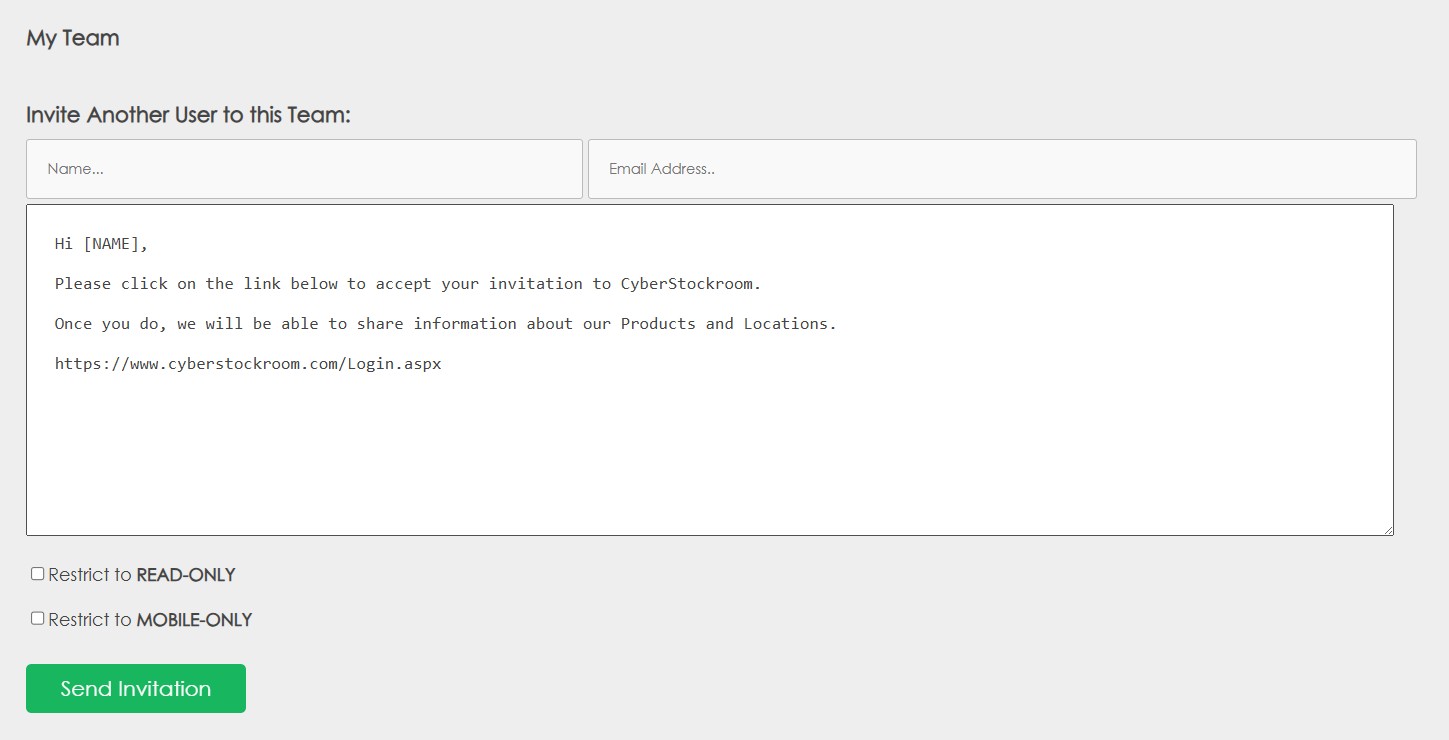
3. Invite other users to the team.
Type the name and email of the user you want to invite in the 'My Team' section.
You can customize the message that the invited user will receive.
User Roles in CyberStockroom
1. Administrator
Full access to all features and settings.
Can change subscription, billing info, roles, and system settings.
2. Team Member
Can access and manage inventory and locations.
Restricted from:
Changing billing or subscription details
Modifying user roles
Setting Custom Fields
Adjusting Time Zone and Currency
Note: Team Members have full access to all inventory items and locations. They cannot be restricted to specific areas.
3. Read-Only Users
Can view inventory data, but cannot make any changes.
Ideal for supervisors, auditors, or anyone who needs access without editing privileges.
Learn more: Read-Only Users →
4. Mobile-Only Users
Access CyberStockroom using a mobile browser with a simplified view.
Best for field workers and on-the-go team members who need to check inventory on-site.
Learn more: Mobile-Only View Users →