Navigate to your Products page and click on the light blue arrow. This will open up a window where you can download the product report.
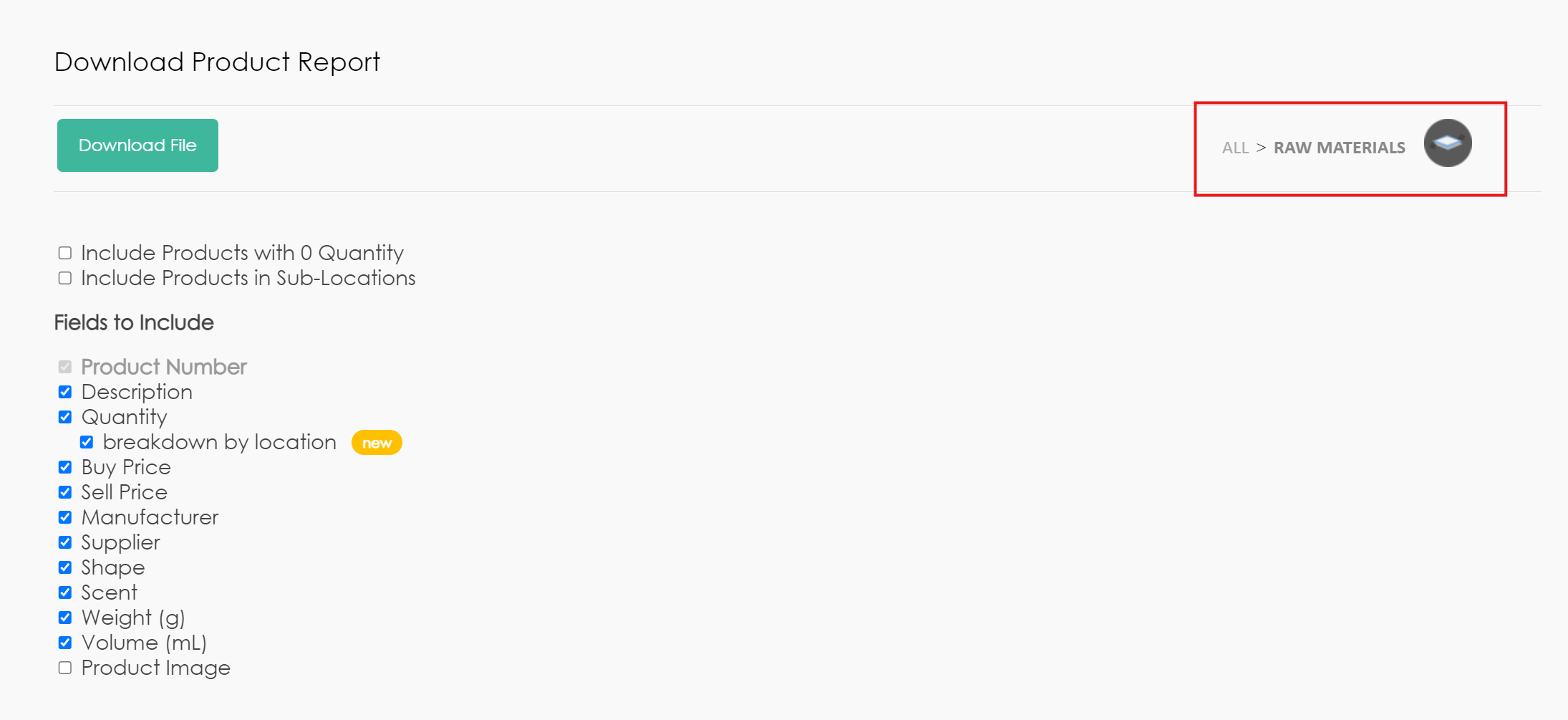
To download the products in a specific location, use the selector in the top right.
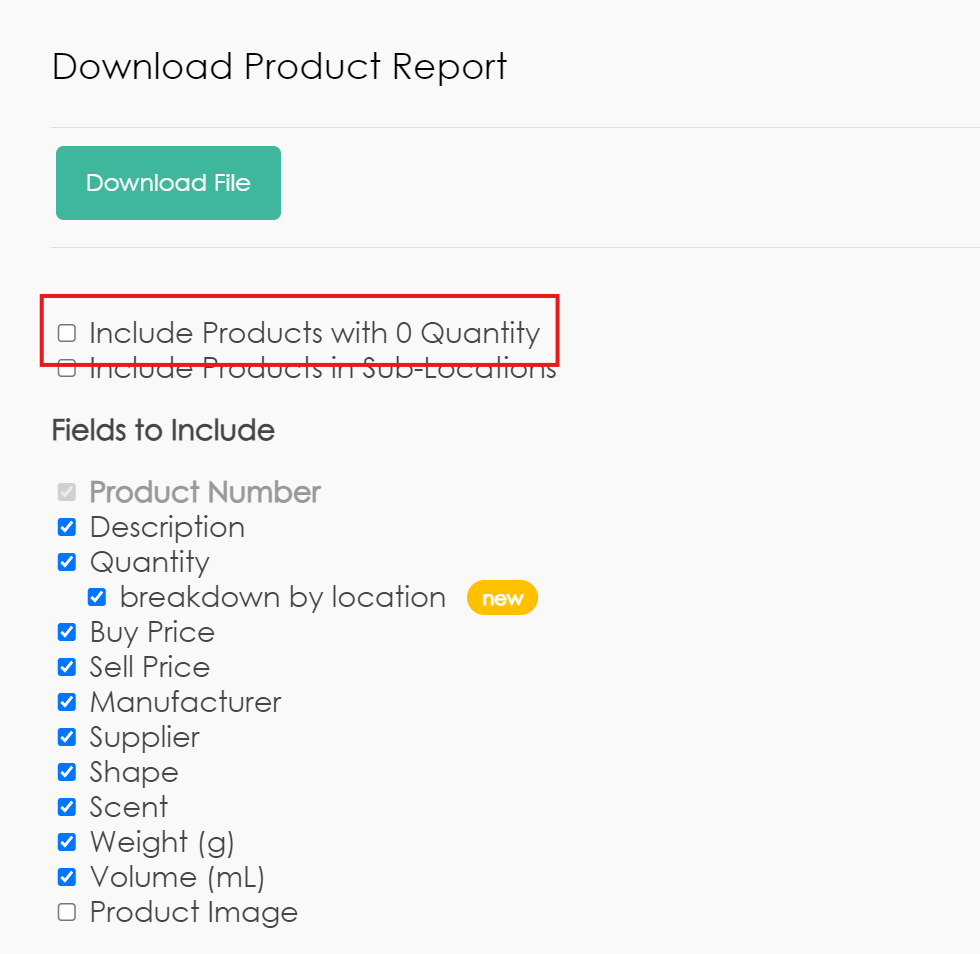
If you want to include all products in your catalog (including those with 0 quantity), make sure to check 'Include Products with 0 Quantity'.
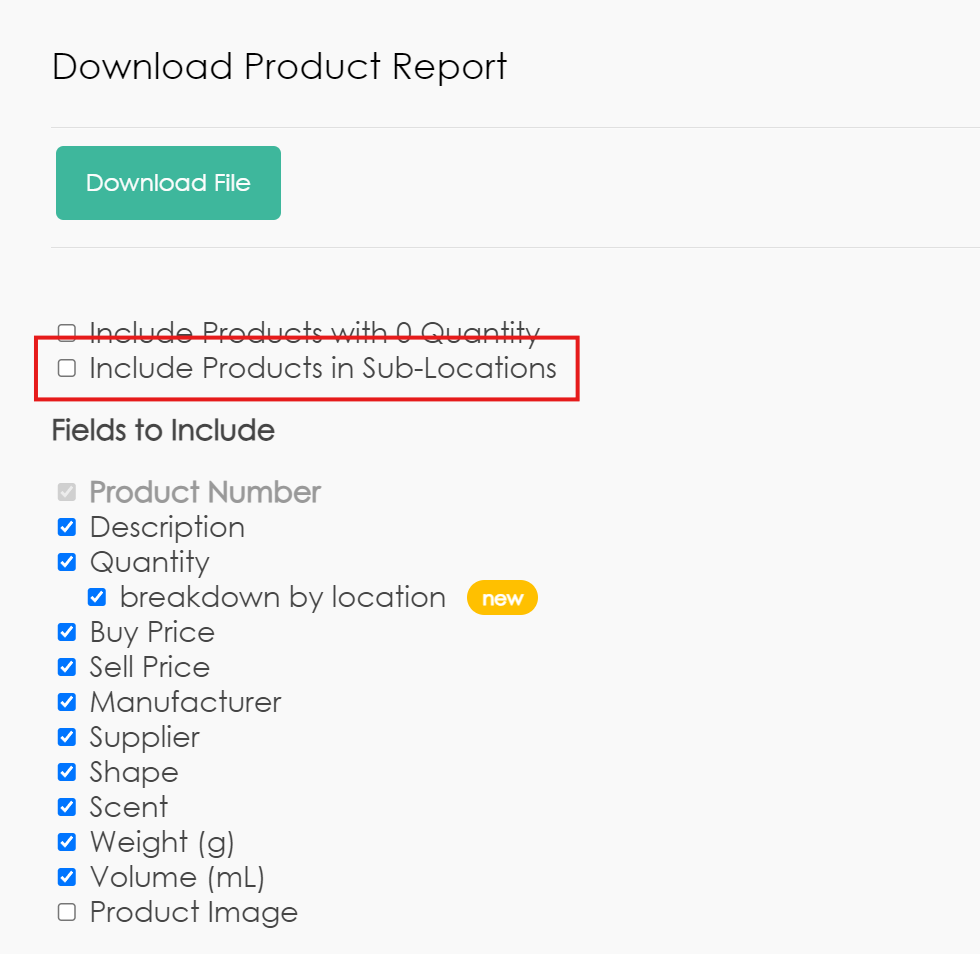
If you want to include the products in the sub-locations as well, make sure to check 'Include Products in Sub-Locations'.
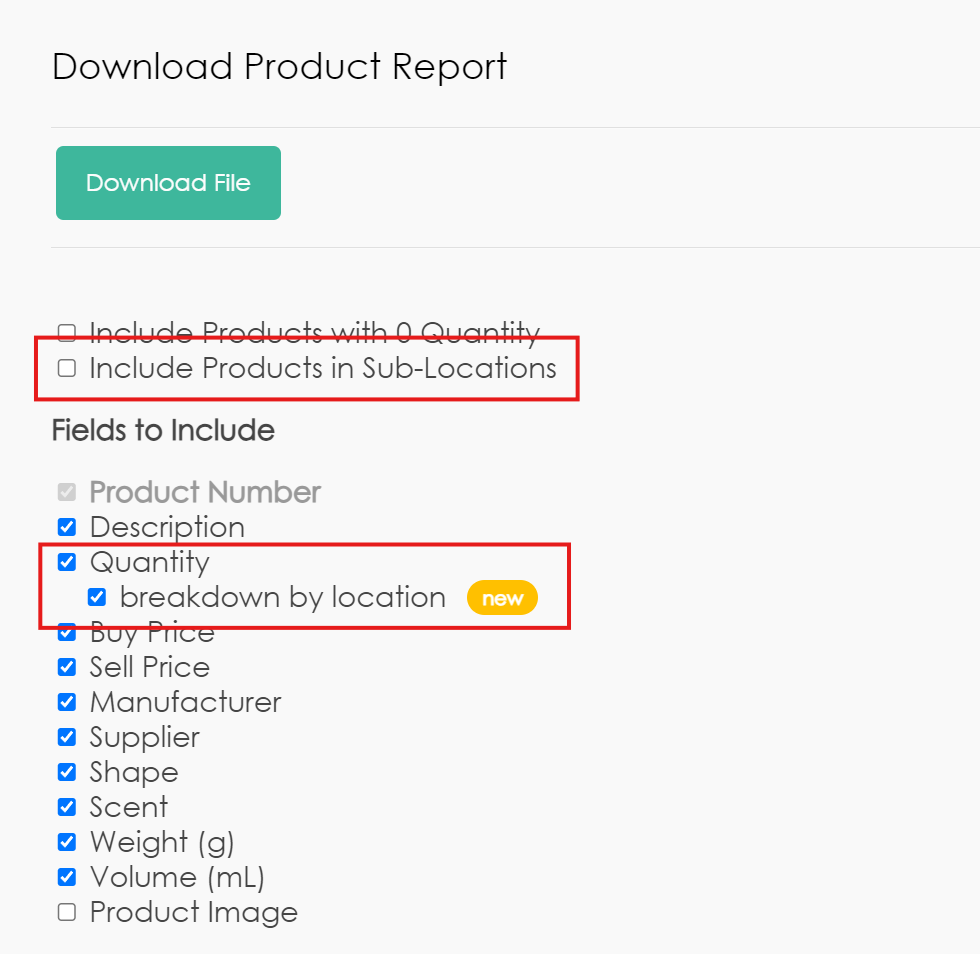
If you want to include the products in the sub-locations as well as the quantity for each location, make sure to check 'Include Products in Sub-Locations' and 'breakdown by location'. This will also include the location name where products are located.